
Version: 1.0.0 | Last Updated: June 2026
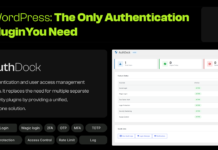
This guide walks you through every feature of AuthDock, from initial installation to advanced configuration. Developed by Degird, AuthDock is a professional-grade WordPress security solution. Each section includes step-by-step instructions, option descriptions, and practical tips.
Table of Contents
- 1. Installation & Activation
- 2. Dashboard Overview
- 3. Social Login
- 4. Magic Link Login
- 5. Two-Factor Authentication (2FA)
- 6. Brute Force Protection (Login Limiter)
- 7. Dynamic Redirects
- 8. Audit Logging
- 9. Security Hardening
- 10. Email Notifications
- 11. wp-admin Access Control
- 12. Session Management
- 13. Shortcodes
- 14. REST API Reference
- 15. Uninstalling
- 16. Troubleshooting & FAQ
1. Installation & Activation
System Requirements
| Requirement | Minimum Version |
|---|---|
| WordPress | 6.0 |
| PHP | 7.4 |
Method A: Install from WordPress Repository
- Log in to your WordPress admin dashboard.
- Navigate to Plugins → Add New.
- In the search box, type AuthDock.
- Find “AuthDock” in the results and click Install Now.
- After installation completes, click Activate.
Method B: Manual Upload
- Download the
authdock.zipfile from WordPress.org. - In your WordPress admin, go to Plugins → Add New → Upload Plugin.
- Click Choose File, select
authdock.zip, and click Install Now. - Click Activate Plugin.
What Happens on Activation
When AuthDock activates, it automatically:
- Creates 3 custom database tables for logs and security.
- Sets default security configurations.
- Registers 5 custom capabilities on the Administrator role.
- Schedules daily WP-Cron tasks for audit log cleanup.
- Enables Brute Force Protection and Audit Logging by default.
Tip: You do NOT need to configure anything for basic protection; these features work out of the box.
2. Dashboard Overview
Find AuthDock in your WordPress admin sidebar. The main dashboard provides:
- Live statistics: View total logins, failed attempts, active lockouts, and active sessions.
- Quick toggles: Enable or disable major security features with a single click.
- Recent activity: Monitor the latest authentication events from the audit log.
3. Social Login
Allow users to sign in or register using their Google, Facebook, GitHub, or X (Twitter) accounts, eliminating the need for passwords.
Step 1: Enable Social Login
- Go to AuthDock → Social Login.
- Toggle Enable Social Login to ON.
Step 2: Configure a Provider
You need OAuth credentials from your chosen providers. Follow the documentation for each specific platform to retrieve your Client ID and Client Secret, then paste them into the respective fields in the AuthDock settings.
4. Magic Link Login
Provide passwordless authentication. Users enter their email address to receive a secure, one-time login link.
- Link Expiry: Configure the duration (default 10 minutes).
- Force Magic Login: Toggle to hide the standard WordPress password field.
5. Two-Factor Authentication (2FA)
Add a secondary verification step to prevent unauthorized access even if a password is compromised.
- Methods: Supports TOTP (Authenticator apps) and Email-based codes.
- Enforcement: Admins can force specific user roles to configure 2FA.
6. Brute Force Protection (Login Limiter)
Automatically tracks failed login attempts and locks out IP addresses that exceed configured thresholds. Progressive lockout (15m, 1h, 24h) is enabled by default to deter bots.
7. Dynamic Redirects
Control user flow after logging in or out based on their role. You can even set a specific First-Login Redirect to guide new users through an onboarding process.
8. Audit Logging
Maintains a searchable, dedicated database record of every authentication event, including successful logins, failed attempts, and password resets.
9. Security Hardening
Enhance site safety with robust hardening features:
- Custom Login URL: Obfuscate
wp-login.phpto evade automated bots. - XML-RPC Control: Disable vulnerable legacy endpoints.
- REST API Restriction: Limit API access for non-logged-in users.
- Security Headers: Easy toggles for
X-Frame-Options,HSTS, and more.
10. Email Notifications
Receive real-time alerts for critical events like IP lockouts, administrator logins, or changes to user passwords and roles.
11. wp-admin Access Control
Restrict dashboard access by user role or IP address. Includes an Emergency Bypass Key to ensure you can always maintain administrative access.
12. Session Management
Manage active sessions by enforcing limits on concurrent logins and setting idle timeouts for inactive users.
13. Shortcodes
14. REST API Reference
AuthDock provides a comprehensive REST API (authdock/v1 namespace) for programmatic management of settings, audit logs, and session control.
15. Uninstalling
- Deactivation: Preserves all settings and data.
- Deletion: Permanently removes all tables, options, and user meta. Ensure you export your logs before full deletion.
16. Troubleshooting & FAQ
If you encounter issues, check the following:
- Social Login: Verify your callback URLs and ensure the app is in “Live” mode.
- Lockouts: Use the Emergency Bypass Key or whitelist your IP.
- 2FA: If codes are invalid, ensure your server’s system time (NTP) is synchronized.
This documentation covers AuthDock v1.0.0. For the latest updates, please see the official plugin changelog.
“`