
DeepCycle is the ultimate focus timer & wellness assistant for Chrome. It combines Pomodoro productivity, website blocking, health reminders, hydration tracking, ambient sounds, and gamified focus tracking — all in one lightweight extension.
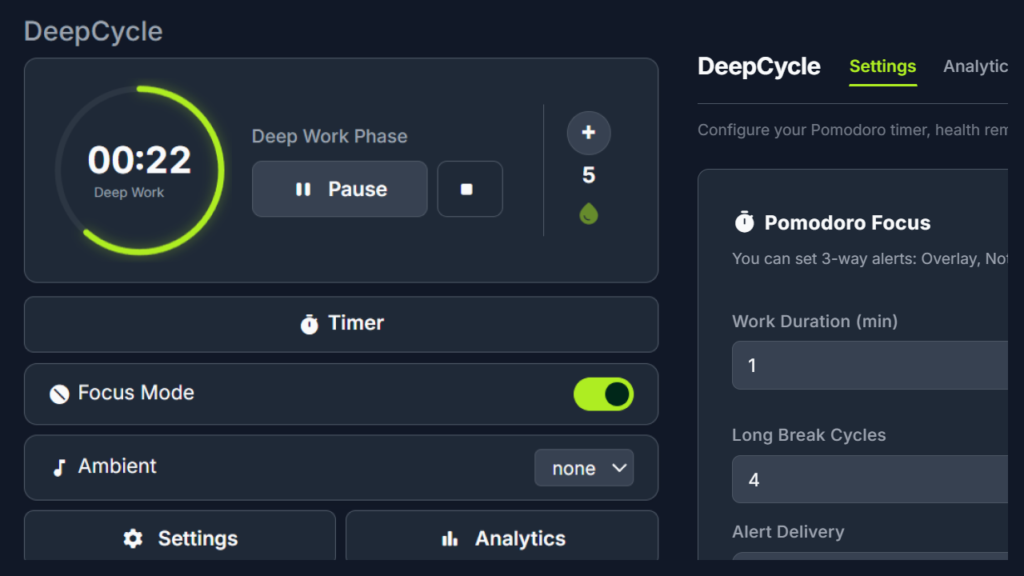
Table of Contents
1. Installation
- Open the Chrome Web Store.
- Click “Add to Chrome” and confirm the permissions.
- Once installed, the DeepCycle icon appears in your Chrome toolbar (top-right).
- Click the icon to open the popup — your daily command center.
Tip: Pin the extension to your toolbar for one-click access. Right-click the extension icon → “Pin”.
2. The Popup — Your Command Center
Click the DeepCycle icon in your Chrome toolbar to open the popup. Here’s what you’ll see:
Header
- DeepCycle brand name on the left.
- POWERED BY DEGIRD branding beside it.
- ⚙️ Settings icon (top-right) — opens the full Settings page.
Timer Card
The main section of the popup features:
- Timer Circle — A circular progress ring showing your current Pomodoro session time. Displays –:– when idle, or a live countdown (e.g., 42:15) during a session.
- Phase Label — Shows “Ready to focus”, “Work Phase”, “Break Phase”, etc.
- Start/Pause Button — Click to start your first Pomodoro session. During a session, it toggles between Pause and Resume.
- Stop Button — Appears during an active session. Click to fully reset and stop the timer.
Hydration Strip
Located on the right side of the timer card:
- “+” Button — Tap each time you drink a glass of water.
- Water Count — Shows your current glass count for the day (e.g., 3).
- 💧 Water Drop Icon — Visual indicator.
Timer Button
Opens the dedicated full-page Timer view for a larger, more immersive countdown experience.
Focus Mode Toggle
- A quick on/off switch to enable or disable Focus Mode (website blocking) without opening Settings.
- When enabled, the toggle glows lime green.
Ambient Sound Selector
- Choose background sounds (lofi, rain, cafe) or custom uploaded sounds.
- Ambient sounds play automatically during work phases and pause during breaks.
Bottom Controls
- Settings button — Opens the full Settings page.
- Analytics button — Opens the Analytics dashboard.
Footer Links
- Review Us — Leave a review on the Chrome Web Store.
- More Tools — Browse other Degird extensions.
- Support — Get help from the Degird support team.
3. Pomodoro Focus Timer
The Pomodoro Technique splits your work into focused intervals (“work sessions”) followed by short breaks. DeepCycle automates the entire cycle.
How to Set Up
- Open Settings (click ⚙️ in the popup or the Settings button).
- Find the Pomodoro Focus card.
- Configure:
- Work Duration (min) — Length of each work session (default: 50 minutes).
- Break Duration (min) — Length of each short break (default: 5 minutes).
- Long Break Cycles — Number of work sessions before a long break (default: 4).
- Long Break Duration (min) — Length of the long break (default: 10 minutes).
How to Start a Session
- Open the popup.
- Click the ▶ Start button.
- The timer begins counting down your work session.
- When the work session ends:
- You receive an alert (based on your alert preferences).
- A break countdown overlay appears on your current webpage.
- The timer automatically starts the break period.
- When the break ends, a new work session begins automatically.
- After completing the configured number of cycles, you earn a long break.
Pause & Resume
- Click ⏸ Pause to freeze the timer mid-session. Your remaining time is saved.
- Click ▶ Resume to continue exactly where you left off.
- Click ⏹ Stop to completely end the session and reset.
Alert Delivery (3-Way Alerts)
For Pomodoro alerts, you can enable any combination of:
- Overlay — A fullscreen countdown overlay appears on your active tab.
- Notification — A Chrome push notification pops up. Includes a “Snooze 5 min” button.
- Beep — A continuous beep sound plays during the break. You can set the beeps per minute rate.
4. Health Reminder System
Stay healthy during long computer sessions with two types of health reminders.
Alert Delivery
Configure the same 3-way alert system (Overlay, Notification, Beep) for all health reminders.
A. Global Queue Alerts
A rotating queue of health tips delivered at regular intervals.
- Enable/Disable — Toggle the Global Queue checkbox.
- Interval (min) — How often a tip is shown (default: 20 minutes).
- Duration (sec) — How long the overlay stays visible (default: 20 seconds).
- Add Custom Tips — Type your own health tip and click Add.
- Available Tips — Select from a built-in library of health tips and click Add to Queue.
- Active Queue — View and manage your current rotation of tips.
- Reset to Latest 5 — Resets the queue to the 5 most recently added tips.
Tips rotate sequentially — each time an alert fires, the next tip in the queue is shown.
B. Individual Health Alerts
Create specific health reminders with custom messages and schedules.
- Enter a message (e.g., “Look 20 feet away for 20 seconds”).
- Set an interval in minutes (how often to trigger).
- Set a duration in seconds (how long the break overlay shows).
- Click Add Health Alert.
- View all active alerts in the list below.
- Click Reset Defaults to restore the built-in set.
5. Custom Reminders
Set personal reminders beyond health — for any purpose.
Alert Delivery
Choose your preferred combination of Overlay, Notification, and Beep alerts.
A. One-Time Alert
- Pick a time (e.g., 3:30 PM).
- Type a message (e.g., “Call mom”).
- Click Add Alert.
- The reminder fires once at the specified time and is automatically removed from the list after delivery.
B. Repeating Alert
- Set an interval in minutes (e.g., every 60 minutes).
- Type a message (e.g., “Sit Up Straight”).
- Click Add Alert.
- The reminder repeats indefinitely at the specified interval until you delete it.
6. Sound Library
DeepCycle includes a full sound system for alerts, ambient noise, and beeps.
Master Switch
- Enable Sound — Toggle all sound playback on/off globally.
Alert Sounds
Choose the chime that plays when a notification fires:
- chime (default), gong, or digital.
- Click the ▶ preview button to hear each one.
Ambient Sounds
Background sounds that play during your work sessions:
- none, lofi, rain, or cafe.
- Ambient sounds automatically pause when the timer is paused or during breaks.
- Click the ▶ preview button to hear each one.
Beep Sounds
The continuous beep sound used for break alerts:
- beep (default) or beep2.
- Click the ▶ preview button to hear each one.
Upload Custom Sounds
Upload your own .mp3 or .wav files:
- Enter a name for the sound.
- Select a category (Alert, Ambient, or Beep).
- Click Choose File and select your audio file.
- Click Add to Library.
- Your custom sound now appears in the corresponding dropdown (Alert, Ambient, or Beep selectors).
7. Focus Mode — Website Blocking
Block distracting websites during your focus hours.
How to Enable
- In Settings, find the Focus Mode card (highlighted with a lime border).
- Enable Focus Mode with the checkbox.
- Alternatively, toggle it directly from the popup using the quick toggle.
Configure Schedule
- Start Time / End Time — Set when blocking is active (e.g., 9:00 AM to 5:00 PM).
- If start and end times are the same, blocking is always active when enabled.
Exclude Days
Check any days you want Focus Mode to be inactive:
- Sun, Mon, Tue, Wed, Thu, Fri, Sat.
- Example: Uncheck Saturday and Sunday for a weekday-only schedule.
Exclude Time Frames
Add break windows when blocking is temporarily paused:
- Set a Start and End time (e.g., 1:00 PM to 1:30 PM for lunch).
- Click Add.
- During these windows, blocked sites become accessible again.
Manage Blocked Domains
- Default Blocklist — Includes Facebook, YouTube, Instagram, Twitter/X, TikTok, Reddit, Snapchat, and LinkedIn.
- Add Custom Domains — Type a domain (e.g., netflix.com) and click Add.
- Remove Domains — Delete individual entries from the list.
- Reset to Default — Restore the original blocklist.
What Happens When You Visit a Blocked Site
You are redirected to a beautifully designed “Stay Focused” page that shows:
- The blocked site’s URL.
- A motivational message (“Your future self thanks you”).
- A helpful tip about how to manage Focus Mode.
- The remaining time in your current focus session.
- A “← Go Back” button to return to your previous page.
8. Hydration Tracker
Stay hydrated throughout the day with built-in water tracking.
Setup
- In Settings, find the Hydration card.
- Set your Daily Water Goal (number of glasses, e.g., 10).
- Set a Reminder Frequency in minutes (e.g., 120 for every 2 hours).
- Set to 0 to disable hydration reminders.
Alert Delivery
Choose your preferred combination of Overlay, Notification, and Beep alerts for hydration reminders.
Tracking Water Intake
- In the popup, use the “+” button on the hydration strip to log each glass of water.
- The counter updates in real-time.
- Water intake resets automatically at the start of each new day.
Viewing Progress
- The Analytics page shows:
- Current glasses consumed vs. your daily goal.
- A progress bar with percentage completion.
9. Keyboard Shortcuts
Control DeepCycle without opening the popup.
| Shortcut | Action |
|---|---|
| Alt + Shift + D | Open the DeepCycle popup |
| Alt + Shift + S | Start / Pause / Resume the Pomodoro timer |
How Alt + Shift + S Works
- If no session is active → Starts a new work session.
- If a session is running → Pauses it.
- If a session is paused → Resumes it.
Customize Shortcuts
- In Settings, find the Keyboard Shortcut card.
- Click “Customize →” to open Chrome’s shortcut configuration page.
- Find DeepCycle and set your preferred key combinations.
10. Behavior Settings
Fine-tune how DeepCycle handles edge cases.
Show Missed Alerts
- When enabled: If the browser was closed and alerts expired, they fire immediately when the browser reopens.
- When disabled: Expired alerts are silently skipped.
This is useful if you close your laptop during a session and want to resume with full alert catch-up when you reopen it.
11. Lock Settings
Prevent accidental changes to your configuration.
- In Settings, find the Lock Settings section at the bottom.
- Enable the Lock checkbox.
- When locked, saving changes requires entering the password “yes” in a prompt.
- This protects your settings from being changed impulsively (e.g., disabling Focus Mode during a weak moment).
12. Analytics Dashboard
Track your productivity and wellness metrics over time.
How to Access
- Click Analytics in the popup, or
- Click the ANALYTICS tab in the Settings/Analytics header.
Overview Stats
- Reminders — Total number of reminders delivered.
- Breaks Taken — Total number of breaks completed.
Focus Mode Protection
- Blocked Today — Sites blocked in the current day.
- All Time — Total blocks since installation.
- Unique Sites — Number of distinct domains blocked.
- Protected Badge — Visual indicator that Focus Mode is protecting you.
- Blocked Domain List — Scrollable list showing which sites were blocked and how many times.
Current Streak
- Tracks consecutive Pomodoro sessions completed without skipping a day.
- Missing a day resets the streak to 1.
- Shows your current streak count prominently.
Hydration
- Displays current water intake vs. daily goal (e.g., “3 / 8 glasses”).
- Visual progress bar with percentage.
Daily Activity Graph
- An hourly bar chart (12 AM → 11 PM) showing your browser activity across the day.
- Taller bars = more active hours.
- Helps you identify your peak productivity windows.
Wellness Score
- A composite score (0%–100%) reflecting your overall wellness.
- Factors in breaks taken, hydration, and focus session completion.
- Displayed as a percentage with a smooth animated progress bar.
13. Virtual Desk Plant
A gamified feature that makes staying focused fun.
How It Works
- Your plant starts as a Seed with 0 health points.
- Each completed Pomodoro work session adds +5 health points.
- As health points increase, your plant grows through 4 stages:
| Health Points | Stage | Visual |
|---|---|---|
| 0 – 24 | 🌱 Seed | A small green dot |
| 25 – 49 | 🌿 Sprout | Two small leaves |
| 50 – 74 | 🌳 Sapling | Three medium leaves |
| 75 – 100 | 🌻 Mature Plant | Full canopy with a flower |
Viewing Your Plant
- Open the Analytics page.
- Scroll down to the Virtual Desk Plant card.
- Click the ⓘ info button to see:
- Current stage and next milestone.
- A description of your plant’s growth.
- A progress bar showing health points out of 100.
Motivation: The plant gives you a tangible, visual reason to keep completing focus sessions. It’s your digital accountability partner.
14. Blocked Site Page
When Focus Mode blocks a site, you see a premium, animated page:
- Shield Icon — Pulsing green shield with a glow effect.
- “Stay Focused!” heading — Gradient text with brand colors.
- Blocked URL — Shows exactly which site was blocked.
- DeepCycle Tip Box — Explains how to manage Focus Mode.
- Session Timer — Shows remaining time in your current Pomodoro session.
- “← Go Back” Button — Returns you to the previous page.
- Floating Particles — Ambient background animation for a calming experience.
15. Benefits of Using DeepCycle
🎯 Boost Productivity
- The Pomodoro Technique is scientifically proven to improve focus and reduce mental fatigue.
- Automatic work/break cycles eliminate the need for manual timekeeping.
- Keyboard shortcuts let you start sessions instantly without breaking your workflow.
🛡️ Eliminate Distractions
- Focus Mode blocks the most addictive websites automatically during work hours.
- Scheduled blocking with exclude days and time windows gives you flexibility without losing discipline.
- The beautiful blocked page reinforces positive behavior instead of feeling punitive.
💪 Protect Your Health
- Health reminders prompt you to take breaks, stretch, look away from the screen, and move.
- Global Queue delivers a rotating set of wellness tips so you never see the same reminder twice in a row.
- 3-way alert system (overlay + notification + beep) ensures you never miss a health break.
💧 Stay Hydrated
- Built-in water tracking with daily goals and periodic reminders.
- One-tap logging from the popup makes it effortless.
- Daily auto-reset so you start fresh every morning.
🎵 Create Your Perfect Environment
- Ambient sounds (lofi, rain, cafe) create a distraction-free atmosphere.
- Custom sound uploads let you use your own background music or alert tones.
- Sounds auto-play during work and auto-pause during breaks.
📊 Track Your Progress
- Analytics dashboard gives you clear visibility into your productivity patterns.
- Daily activity graphs help you find your peak focus hours.
- Streak tracking builds momentum and healthy habits.
🌱 Stay Motivated
- Virtual Desk Plant grows as you focus, creating a visual reward system.
- Streak counter gamifies consistency.
- Wellness Score gives you a single number to optimize.
🔒 Stay Accountable
- Lock Settings prevents you from weakening your configuration during moments of low willpower.
- Missed alert recovery ensures nothing slips through the cracks.
🧘 Designed for Well-Being
DeepCycle isn’t just a productivity tool — it’s a wellness assistant. It balances work intensity with health consciousness, encouraging you to work smarter, take care of your body, and maintain sustainable habits for the long term.
Quick Start Summary
| Step | Action |
|---|---|
| 1 | Install DeepCycle from the Chrome Web Store |
| 2 | Click the icon → Press Start to begin your first Pomodoro session |
| 3 | Open Settings to customize timers, health alerts, and blocked sites |
| 4 | Enable Focus Mode to block distracting websites |
| 5 | Use the “+” button in the popup to track water intake |
| 6 | Check Analytics to see your progress, streak, and plant growth |
| 7 | Use Alt + Shift + S to quickly start/pause sessions from any tab |
DeepCycle — Focus Smarter. Stay Healthier. Grow Stronger. 🌱
Built by Degird • Privacy Policy • Support