
To use the AI-powered features in the Domain Availability Checker, you will need a free API key from Google. This key allows the extension to communicate with Google’s Gemini model to brainstorm brand names and domain ideas for you.
Follow this simple 2-minute guide to get started.
📋 What You Need
- A Google Account (Gmail).
- About 2 minutes of your time.
Pro Tip: Google AI Studio API keys are currently free for personal use with generous daily limits. No credit card or billing setup is required.
🚀 Step-by-Step Instructions
Step 1: Access Google AI Studio
Open your browser and navigate to the Google AI Studio API Keys page: https://aistudio.google.com/apikey
If you aren’t already signed in, log in using your preferred Google account.
Step 2: Generate Your Key
Once the dashboard loads:
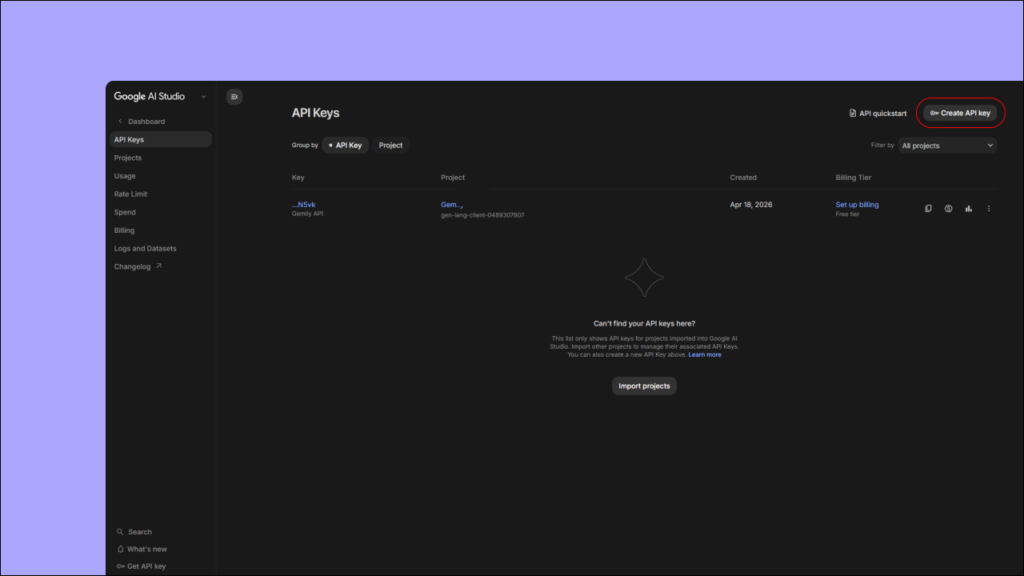
- Locate and click the “Create API key” button.
- If this is your first time, select “Create API key in new project”. This keeps your extension settings organized and separate from other Google Cloud projects.
- The system will generate a unique string of characters instantly.
Step 3: Securely Copy Your Key
Your API key will be displayed in a format similar to this:
AIzaSy...your-unique-key-here...X4k
- Click the Copy icon to save it to your clipboard.
- Safety Warning: Treat your API key like a password. Never share it in public forums or screenshots.
Step 4: Activate the Extension
- Open the Domain Availability Checker extension in your browser.
- Click the “✨ AI: Generate Brand Name” button to open the AI interface.
- Look for the API key input field in the top-right corner of the popup header.
- Paste your key into the field.
The extension saves this key to your browser’s local storage automatically. You won’t need to enter it again unless you clear your browser data.
✅ Verifying the Setup
To ensure everything is working correctly:
- Enter a Niche Category (e.g., SaaS or Organic Coffee).
- Provide a brief Brand Description (e.g., Eco-friendly packaging for cafes).
- Click “✨ Generate New Brand”.
- Watch the Process Monitor. Within 10–30 seconds, you should see a list of creative domain name ideas.
🛠️ Troubleshooting
| Common Issue | Solution |
| “API key not valid” | Ensure you copied the entire string. Try deleting the key in the extension and re-pasting it. |
| “Quota exceeded” | You have reached the free daily limit. Wait 24 hours for the limit to reset. |
| No response / Timeout | Check your internet connection. Large requests can occasionally take up to 60 seconds. |
| Empty Results | Try using a more descriptive “Brand Description” or lowering the “Total Ideas” count. |
❓ Frequently Asked Questions
Is this really free?
Yes. Google provides a free tier for developers and personal use that is more than sufficient for standard domain searching.
Where is my key stored?
Your key is stored locally in your browser using chrome.storage.local. It is only sent to Google’s official API servers and never to any third-party databases.
Which AI model is being used?
The extension uses Google Gemini Flash, which is optimized for high-speed text generation and creative brainstorming.
Documentation Version: 2.0.0