
TabFold is a powerful, lightweight Chrome extension that helps you organize, manage, and take full control of your browser tabs. Whether you have 5 tabs or 50, TabFold gives you the tools to stay focused, save memory, and never lose important tabs again.
This guide walks you through every feature — from installation to advanced power settings — so you can get the most out of TabFold.
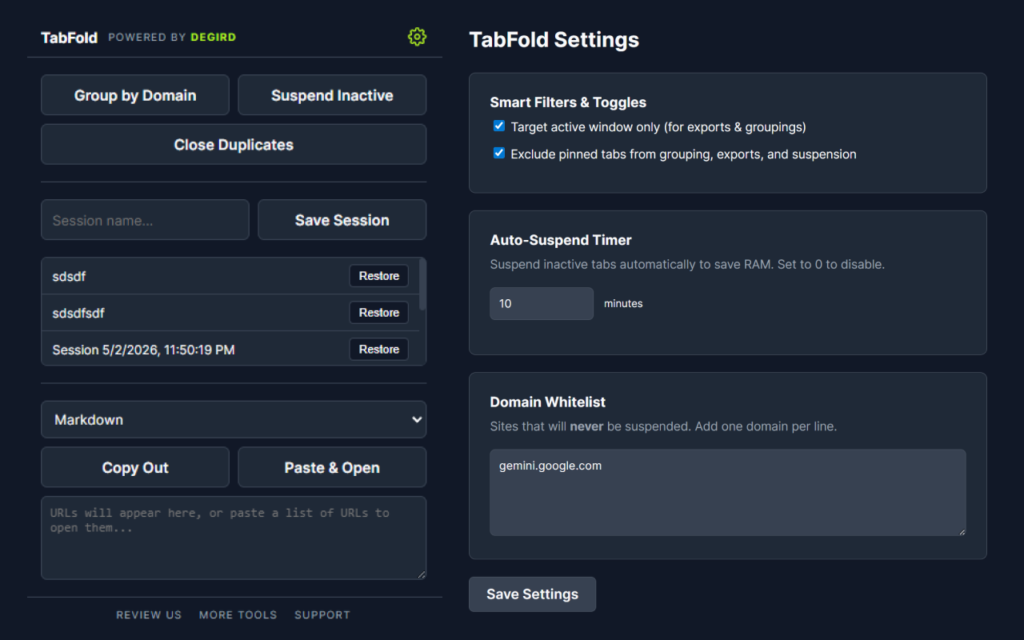
Table of Contents
1. Installation
From Chrome Web Store
- Visit the TabFold listing on the Chrome Web Store.
- Click “Add to Chrome”.
- Confirm the permissions prompt.
- Pin TabFold to your toolbar by clicking the puzzle piece icon (Extensions) → click the pin icon next to TabFold.
Developer Mode (Manual Install)
- Download or clone the TabFold repository.
- Open Chrome and go to chrome://extensions/.
- Enable Developer mode (toggle in the top-right corner).
- Click “Load unpacked” and select the TabFold folder.
- Pin TabFold to your toolbar for quick access.
2. Opening TabFold
There are two ways to open the TabFold popup:
- Click the TabFold icon in your browser toolbar.
- Use the keyboard shortcut: Press Alt + Shift + F to instantly open the popup from any tab.
3. Popup Overview
When you open TabFold, you’ll see a clean, dark-themed popup with the following sections:
| Section | Description |
|---|---|
| Header | Displays the TabFold logo, “POWERED BY DEGIRD” branding, and a ⚙️ gear icon (lime green) to access Settings. |
| Action Buttons | “Group by Domain” and “Suspend Inactive” side by side, with “Close Duplicates” below. |
| Save Session | A text input for naming your session and a “Save Session” button. |
| Session List | Your saved sessions with a “Restore” button for each. First 3 are visible; scroll for more. |
| Export/Import | A format dropdown, “Copy Out” and “Paste & Open” buttons, and a text area. |
| Footer | Links to Review Us, More Tools, and Support. |
4. Group by Domain
What it does: Automatically organizes all your open tabs into Chrome’s native Tab Groups, sorted by domain (website). Each group gets a random color label.
How to use it:
- Open the TabFold popup.
- Click “Group by Domain”.
- All tabs from the same website (e.g., all YouTube tabs, all GitHub tabs) are instantly grouped together with the domain name as the group title.
Important notes:
- Only domains with 2 or more tabs will be grouped.
- Chrome internal pages (chrome://) and Edge pages (edge://) are excluded.
- The www. prefix is automatically stripped for cleaner group names.
5. Suspend Inactive Tabs
What it does: Instantly suspends (discards) all inactive tabs to free up system memory (RAM). Suspended tabs remain in your tab bar but their content is unloaded — they reload when you click on them.
How to use it:
- Open the TabFold popup.
- Click “Suspend Inactive”.
- A status message will confirm how many tabs were suspended (e.g., “Suspended 12 tabs.”).
Which tabs are NOT suspended:
- The currently active tab (the one you’re viewing).
- Tabs that are playing audio (e.g., music or video).
- Tabs that are already suspended (discarded).
- Tabs on domains in your whitelist (configured in Settings).
- Pinned tabs (if “Exclude pinned tabs” is enabled in Settings).
6. Close Duplicates
What it does: Finds and closes all tabs that share the exact same URL, keeping only the first occurrence.
How to use it:
- Open the TabFold popup.
- Click “Close Duplicates”.
- A status message confirms the result (e.g., “Closed 3 duplicates.” or “No duplicates found.”).
Tip: This is great for cleaning up after a research session where you may have accidentally opened the same article multiple times.
7. Save & Restore Sessions
Sessions let you save a snapshot of all your currently open tabs so you can close them now and restore them later.
Saving a Session (from Popup)
- Open the TabFold popup.
- Type a name in the “Session name…” input field (e.g., “Work Research” or “Shopping List”). If left blank, a timestamp will be used as the name automatically.
- Click “Save Session”.
- A status message confirms the save (e.g., “Saved 8 tabs as session.”).
- The session immediately appears in the session list below.
Restoring a Session
- In the popup, find your saved session in the list.
- Click the “Restore” button next to it.
- All saved tabs from that session will open in a new browser window.
Session List Behavior
- The 3 most recent sessions are always visible.
- If you have more than 3 sessions, the list becomes scrollable.
- Sessions are ordered newest first at the top.
8. Export Tabs
What it does: Copies all your open tabs to the clipboard in your chosen format — perfect for sharing, bookmarking, or documenting your research.
How to use it:
- Open the TabFold popup.
- Select your preferred format from the dropdown menu:
- Markdown — [Page Title](https://url.com) format.
- Plain Text — Title on one line, URL on the next.
- CSV — Comma-separated values with Title,URL headers.
- HTML — An unordered list with clickable anchor links.
- Click “Copy Out”.
- The exported text appears in the text area AND is automatically copied to your clipboard.
- A status message confirms: “Copied to clipboard!”
Tip: Use Markdown export to quickly paste a formatted list of links into a document, email, or Slack message.
9. Paste & Open URLs
What it does: Opens multiple URLs at once by pasting them into the text area.
How to use it:
- Open the TabFold popup.
- Paste a list of URLs into the text area at the bottom. They can be in any format — raw URLs, Markdown links, HTML, or mixed text. TabFold will extract all valid http:// and https:// URLs automatically.
- Click “Paste & Open”.
- Each URL opens as a new background tab.
- A status message confirms: “Opening 5 links…”
Use case: Reopen a list of URLs from a document, email, or previously exported session.
10. Settings Page
Access the full Settings page by clicking the ⚙️ gear icon (lime green) in the popup header. The Settings page has two tabs:
- Settings — Smart Filters, Auto-Suspend Timer, Domain Whitelist.
- Sessions — Full session management with save, restore, and delete.
11. Smart Filters & Toggles
Located in the Settings tab of the Settings page. These toggles control how TabFold behaves across all actions.
Target Active Window Only
- Enabled (default): Export, grouping, and duplicate detection only affect tabs in the current window.
- Disabled: Actions affect tabs across all open windows.
Exclude Pinned Tabs
- Enabled (default): Pinned tabs are excluded from grouping, exports, and suspension.
- Disabled: Pinned tabs are included in all actions.
Don’t forget: Click “Save Settings” after making changes!
12. Auto-Suspend Timer
Located in the Settings tab. This feature automatically suspends tabs that haven’t been used for a set period.
How to configure:
- Go to the Settings page (⚙️ icon).
- In the “Auto-Suspend Timer” card, enter the number of minutes of inactivity before a tab is suspended.
- Set to 0 to disable auto-suspension entirely.
- Click “Save Settings”.
How it works behind the scenes:
- A background timer checks all tabs every minute.
- If a tab has been inactive longer than your set threshold, it is automatically discarded.
- Whitelisted domains, active tabs, audio-playing tabs, and pinned tabs (if excluded) are never suspended.
13. Domain Whitelist
Located in the Settings tab. This lets you protect specific websites from ever being suspended — either manually or by the auto-suspend timer.
How to configure:
- Go to the Settings page (⚙️ icon).
- In the “Domain Whitelist” card, type one domain per line. For example:mail.google.com
open.spotify.com
docs.google.com
- Click “Save Settings”.
Tip: Use this for sites where you need persistent connections — email, music streaming, real-time dashboards, messaging apps, etc.
14. Session Management (Settings Page)
The Sessions tab on the Settings page provides full session management with more options than the popup.
Saving a Session
- Click the “Sessions” tab in the Settings header.
- Type a descriptive name in the input field (e.g., “Project Research”).
- Click “Save Session”.
- The session appears in the list below with the number of saved tabs.
Restoring a Session
- Click the “Restore” button next to any session.
- All tabs open in a new browser window.
Deleting a Session
- Click the “Delete” button next to any session to permanently remove it.
Real-Time Sync
- Sessions saved from the popup automatically appear in the Settings page without needing a page refresh. The list updates in real-time via storage change detection.
15. Keyboard Shortcut
| Shortcut | Action |
|---|---|
| Alt + Shift + F | Open the TabFold popup |
This shortcut works from any tab and instantly opens the TabFold menu so you can take action without reaching for the mouse.
16. Footer Links
Both the popup and Settings page include quick links in the footer:
| Link | Popup | Settings | Description |
|---|---|---|---|
| REVIEW US | ✅ | ✅ | Leave a review on the Chrome Web Store. |
| MORE TOOLS | ✅ | ✅ | Discover other extensions by DEGIRD. |
| SUPPORT | ✅ | ✅ | Get help or report issues. |
| PRIVACY | ❌ | ✅ | View the privacy policy. |
| USER GUIDE | ❌ | ✅ | Open this documentation page. |
17. Benefits of Using TabFold
🚀 Boost Productivity
Stop wasting time searching through 30+ open tabs. Group them by domain in one click, find what you need instantly, and close the clutter.
💾 Save System Memory
Every open tab consumes RAM — especially heavy sites like Gmail, YouTube, or Google Docs. TabFold’s suspend feature can free up hundreds of megabytes of memory, making your computer noticeably faster.
🧠 Reduce Mental Overload
A cluttered tab bar is stressful. TabFold helps you organize your workspace so you can focus on what actually matters.
📋 Never Lose Important Tabs
Save your current tabs as a named session before closing them. Whether you’re switching between projects, wrapping up for the day, or cleaning up your browser — you can always restore exactly where you left off.
🔄 Share & Migrate Tabs Effortlessly
Export your open tabs in Markdown, CSV, HTML, or plain text. Share research with teammates, save references to a document, or migrate tabs between devices.
🔒 100% Private & Local
TabFold processes everything locally in your browser. No data is ever sent to any server. No analytics, no tracking, no accounts required. Your browsing data stays on your machine.
⚡ Lightweight & Native
Built entirely on Chrome’s Manifest V3 APIs with zero external dependencies. TabFold is fast, secure, and uses minimal resources.
🎨 Clean, Modern UI
A unified dark theme with lime green accents provides a premium, distraction-free experience that’s easy on the eyes.
18. FAQ
Q: Will suspended tabs lose their data?
A: Suspended tabs keep their URL and title. When you click on a suspended tab, it simply reloads. Any unsaved form data on that page will be lost, so make sure to save your work before suspending.
Q: Can I undo a grouping?
A: Yes — simply right-click any Tab Group header in Chrome and select “Ungroup” to dissolve the group. Your tabs will remain open.
Q: What happens when I restore a session?
A: All tabs from the session open in a brand-new window. Your current window and tabs are not affected.
Q: Is there a limit on how many sessions I can save?
A: There is no hard limit. Sessions are stored in Chrome’s local storage, which has generous capacity for typical usage.
Q: Does TabFold work on other Chromium browsers?
A: Yes — TabFold works on any Chromium-based browser that supports Manifest V3, including Google Chrome, Microsoft Edge, Brave, and Vivaldi.
Q: Does TabFold send my data anywhere?
A: Absolutely not. TabFold is 100% offline and local. No APIs, no servers, no tracking. Your data never leaves your browser.
Thank you for using TabFold! If you find it helpful, please consider leaving a review on the Chrome Web Store. ⭐
Powered by DEGIRD